


HELP: Site Help - Search, Posting Pics, Mobile Version
 09-04-2011, 01:00 AM
#1
UK Moderator


Thread Starter

 HELP: Site Help - Search, Posting Pics, Mobile Version
The new site, both the Full Version and Mobile now have a new search facility. Here are some tips on how to use it:
- To do a basic search of the forum you are currently viewing, simply type the word you are looking for into the search box and press Enter or click the Magnifying Glass. Here we're searching for Bridgestone:

- You can also choose to search Forums, or the Gallery or Members by choosing the appropriate option in the drop down box:

- and here are the results:

- As you can see, there are a lot, so the advanced search is likely to be of a lot more use. Here you have options to search a particular forum or forums, or for posts by a particular member, you can view the results as threads or as posts, and also have various sort options - it's all pretty self explanatory:

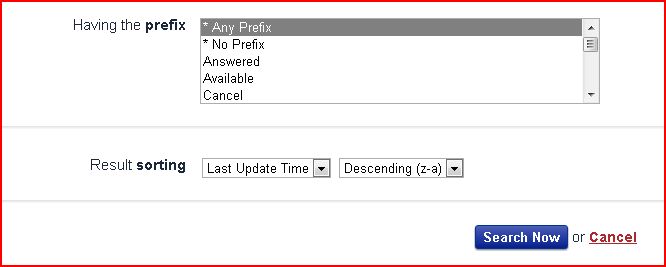
- This give far fewer results and you'll be more than likely to find what you want, we now have 65 results rather than 838!:

- If you're on the mobile version of the site, you can still search and access your messages etc. If you have a phone with a big enough screen, you can still view the Full Version. Scroll down to the bottom of any page and select "Full Version" (it's in the same place as where it says "Theme" here). You'll also see where you can enter the search menu:

- On pressing Search, you'll get this, which is pretty self explanatory:

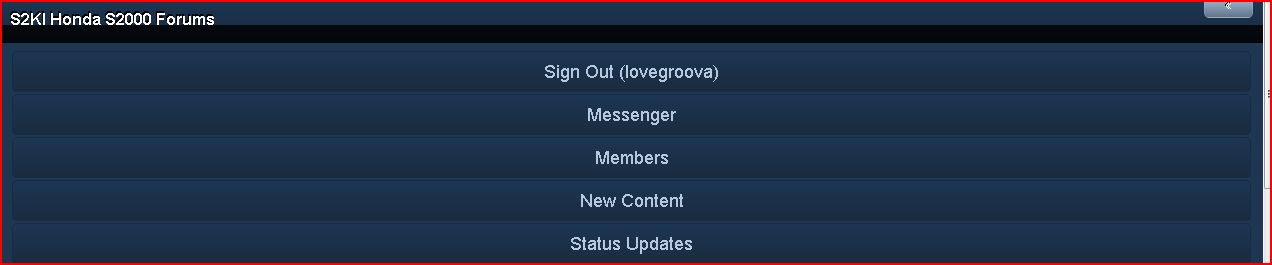
- If you want to view Personal Messages, you need to click on the double right arrow button at the top-right hand side of your screen:

- Which will bring up this menu, again pretty self explanatory:
 09-29-2011, 01:42 AM
#2
UK Moderator
Thread Starter
Loading photos from Photobucket/flickr etc:
To UPLOAD PICTURES
1. Choose "My Gallery" From your profile menu at the top-right of your screen

2. Click Upload at the top right (GREEN BUTTON)

3.Choose an album to upload into or create a new one

Your albums are in the left column - the right column are community albums, use your own albums!

The Album is selected.

4. Click upload and select files (up to 10 can be queued)

The file will upload - click publish and finish

The picture(s) will show up in your album

TO SHOW A PICTURE IN A POST
There are a couple of options:
OPTION A
1. Click on the picture you want to post
2. Choose "Share image" and copy the BB Code

3. Paste that code into your post/reply

4. It will show a clickable image like this thumbnail

OPTION B
1. Back to the image you want to post, Right click on it and select "Direct link to this image file"

2. You will get this - Copy the URL from the address bar

3. Click the image icon in the reply box and paste that code into the box, click insert image.

It will look like this

- Go to the photo in photobucket you want to copy.
- Click on the photo - you will see a dropdown of options.
- Click the link in the last option - IMG code. It will say"copied".
- Paste (Ctrl V if you don't want to right click) the link in your reply on S2Ki where you want it.
- That's it.
- Keep both open for multiple pics and toggle back and forth,doing the same thing for each pic you want in the reply.
To UPLOAD PICTURES
1. Choose "My Gallery" From your profile menu at the top-right of your screen
2. Click Upload at the top right (GREEN BUTTON)
3.Choose an album to upload into or create a new one
Your albums are in the left column - the right column are community albums, use your own albums!
The Album is selected.
4. Click upload and select files (up to 10 can be queued)
The file will upload - click publish and finish
The picture(s) will show up in your album
TO SHOW A PICTURE IN A POST
There are a couple of options:
OPTION A
1. Click on the picture you want to post
2. Choose "Share image" and copy the BB Code
3. Paste that code into your post/reply
4. It will show a clickable image like this thumbnail
OPTION B
1. Back to the image you want to post, Right click on it and select "Direct link to this image file"
2. You will get this - Copy the URL from the address bar
3. Click the image icon in the reply box and paste that code into the box, click insert image.
It will look like this
12-06-2011, 11:40 AM
#4
UK Moderator
Thread Starter
- Find your YouTube video and copy the url
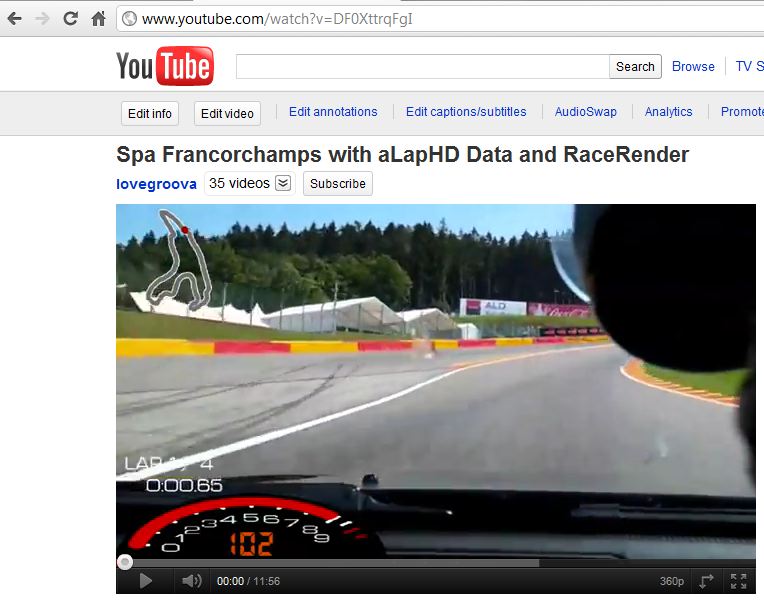
- In your editor, click the "Insert Media" button, which is on the far right hand side of the formatting bar (looks like 3 pictures stacked)

- Paste your YouTube url into the box (IMPORTANT - change "https" to "http").

- That's it!!!
04-25-2013, 03:48 AM
#5
Registered User

Quick question for people more knowledgeable than me
On my htc android mobile I used to have the mobile version, and on my pc at work and laptop at home the desktop version and it always seemed to remember it correct what system i logged in with.
Now for some reason my mobile shows the desktop version and if I change it it'll show the mobile version on my pc too, do I then change that back to desktop version it also goes on my mobile.....
It pisses me off!
On my htc android mobile I used to have the mobile version, and on my pc at work and laptop at home the desktop version and it always seemed to remember it correct what system i logged in with.
Now for some reason my mobile shows the desktop version and if I change it it'll show the mobile version on my pc too, do I then change that back to desktop version it also goes on my mobile.....
It pisses me off!

 . Can't post pics in the mobile version with the S2KI gallery. Have to use tinypic now.

Trending Topics




Thread
Thread Starter
Forum
Replies
Last Post